How do I find a member?
Open Members and type a name, member number or pseudonym into the search box. Use Everyone or Joined this month to narrow the list, and No longer here to find someone you've removed.
Last checked 22 November 2026
Open Members and type into the search box. It matches a first name, a member number, or a pseudonym.
- Open Members from the top of your dashboard.
- Type a name, a member number (with or without the leading zeros) or a pseudonym into Search a name, a number, or a pseudonym….
- The list and its count update as you type.

What each row shows
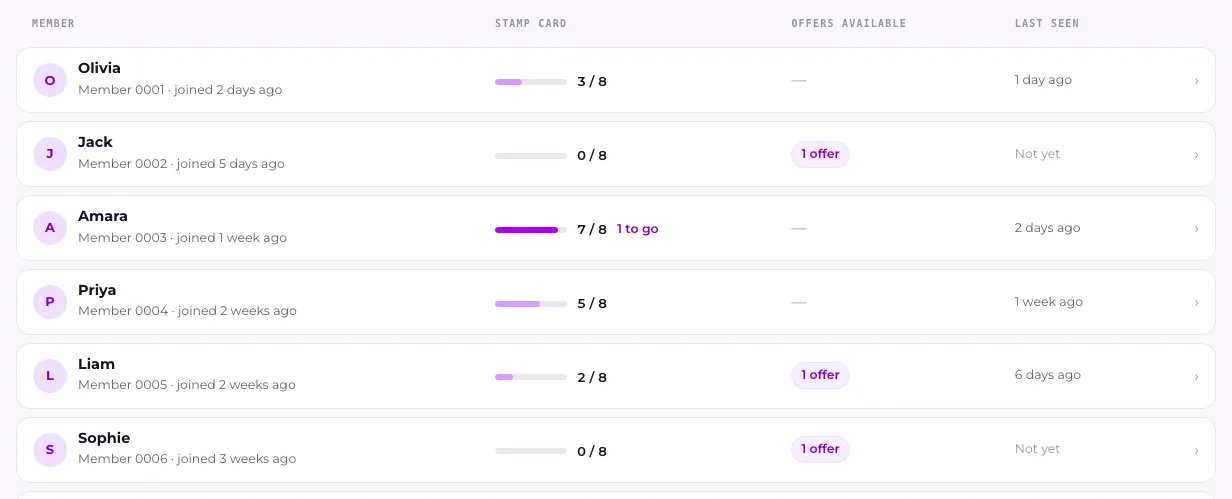
Section titled “What each row shows”Under each name is their member number and when they joined. Then:
- Stamp card — how far through their current card they are, such as 5 / 8, with 1 to go when they’re one visit from the reward. It only appears while your Stamp Card is running.
- Offers available — how many offers they can use right now, such as 2 offers. Your standing discount isn’t counted, because every member has it. If their paid membership is on hold, this says Paused: they can’t use their offers until it’s sorted.
- Last seen — their last recorded visit, or Not yet.
On a phone, the card and offers sit as small tags on the right, and the line under the name says when they were last seen.
Narrowing the list
Section titled “Narrowing the list”Two chips sit under the search box:
- Everyone — every current member.
- Joined this month — only people who joined since the start of this month.
If anyone has a gift membership, a chip called On a gift membership appears too. It shows everyone whose membership is, or was, a gift, including people whose gift has ended.
A further chip, No longer here, only appears once you’ve actually removed someone. It shows people who’ve left, in case you need to find one to put them back — see How do I put a member back after removing them?
Groups from other pages
Section titled “Groups from other pages”Press Regulars, Haven’t been in for 2 weeks or Haven’t come in yet on How it’s going, or No visit recorded on Paid members, and this list opens with just those members. See all in Members in the Offers library does the same for everyone who has used an offer. One chip names the group, such as Haven’t been in for 2 weeks or Claimed Welcome Treat, with how many of your members it holds. Press the chip to see everyone again. Search and Export as CSV work on the group too. Write to your members there opens a new message to everyone, not only the group.
Gift memberships
Section titled “Gift memberships”If you sell gift memberships, two tabs sit at the top of the page: Members, this list, and Gift memberships, every gift membership sold, with who bought it and whether it’s been opened. See How do I sell gift memberships?
What counts as a member here
Section titled “What counts as a member here”Someone appears on this list, and in your headline count, from the moment they finish joining until you remove them or they leave on their own. If you’ve scanned your own club’s code to try it out, that test signup shows up in the table with a Test tag so you can still find it — but it never counts towards your numbers. A member of the Flub team who has joined to see how your club looks gets the same Test tag. Anyone who joined with a free invite is listed with Not counted · Your team, and is left out of the count.
What happens next
Section titled “What happens next”Open anyone’s row to see their record — see How do I check a member’s offers, stamps and history? Press Export as CSV at the top of the page for a spreadsheet of your current, real members, with the same search and month filter applied. It also includes anyone who joined on a free invite, who isn’t in your headline count, so the file can hold more rows than that number.
Related
Section titled “Related”© Flub 2026 | What's new | useflub.com
Flub is a trading name of FLUB INDUSTRIES LTD, a company registered in England and Wales (no. 17491066). Registered office: The Workstation, 15 Paternoster Row, Sheffield, S1 2BX, United Kingdom.